This guide will show you how to access the control panel where you can manage your DNS, Email and Website settings.
1. Introduction
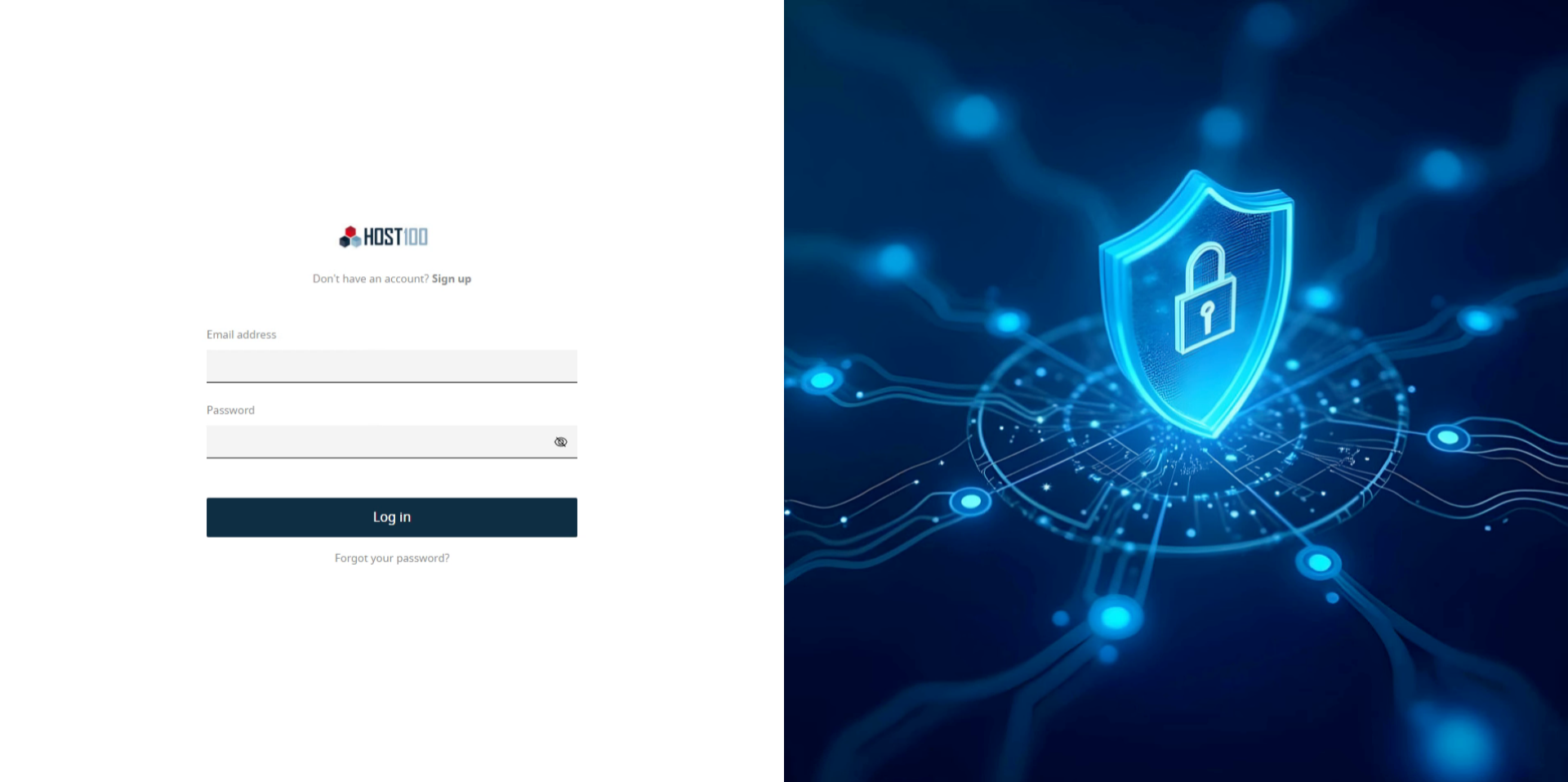
There are two ways to access the control panel. One is direct with a username and password, and the other is via the client portal, also known as the billing platform. First we will show you the direct method, which is by navigating to the control panel website address.
2. Email Address
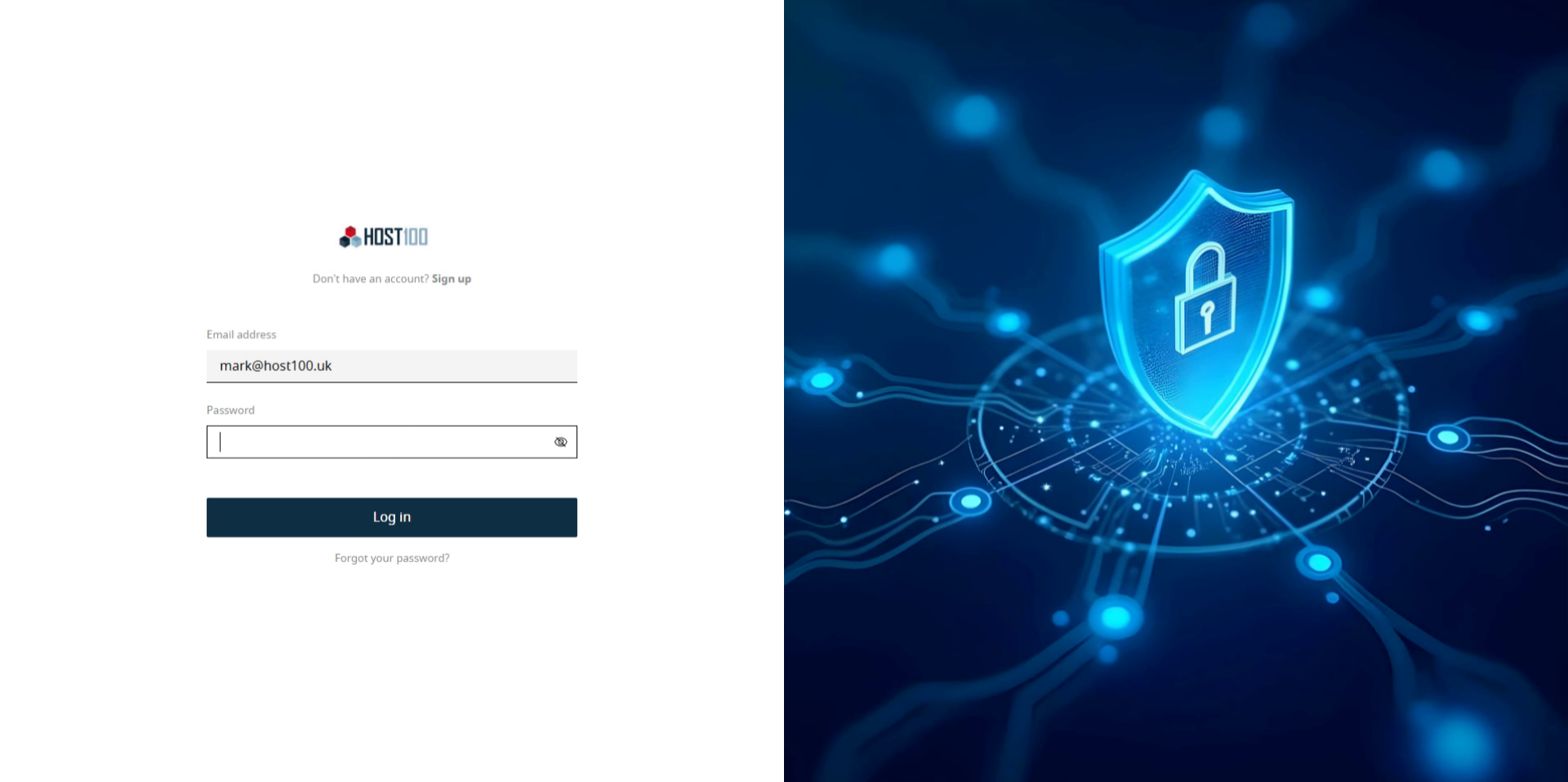
Click in the Email Address field.
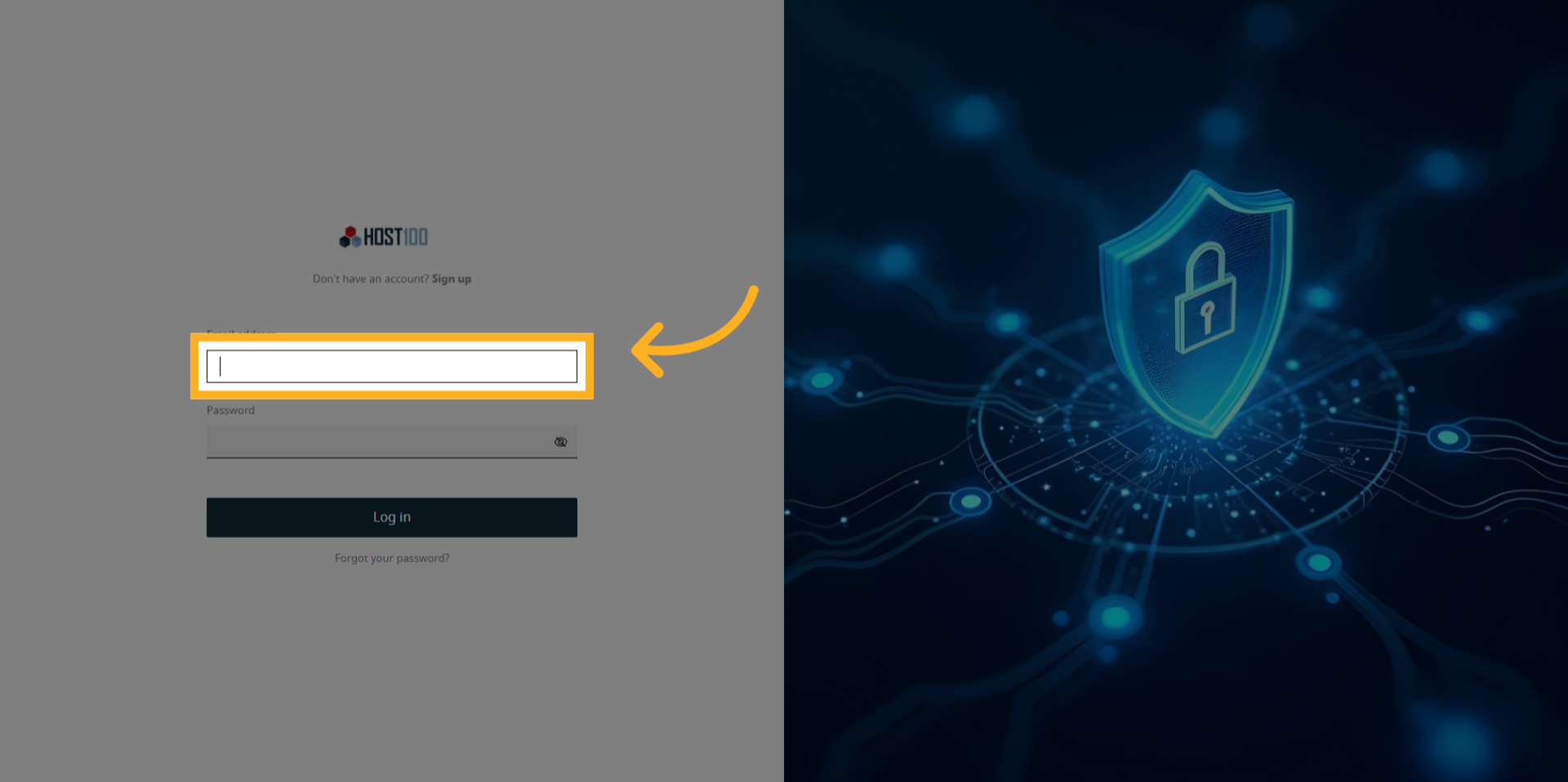
3. Enter Your Email Address
Enter the Email Address associated with the account which should have been sent to you via email in your Hosting Account Information email.
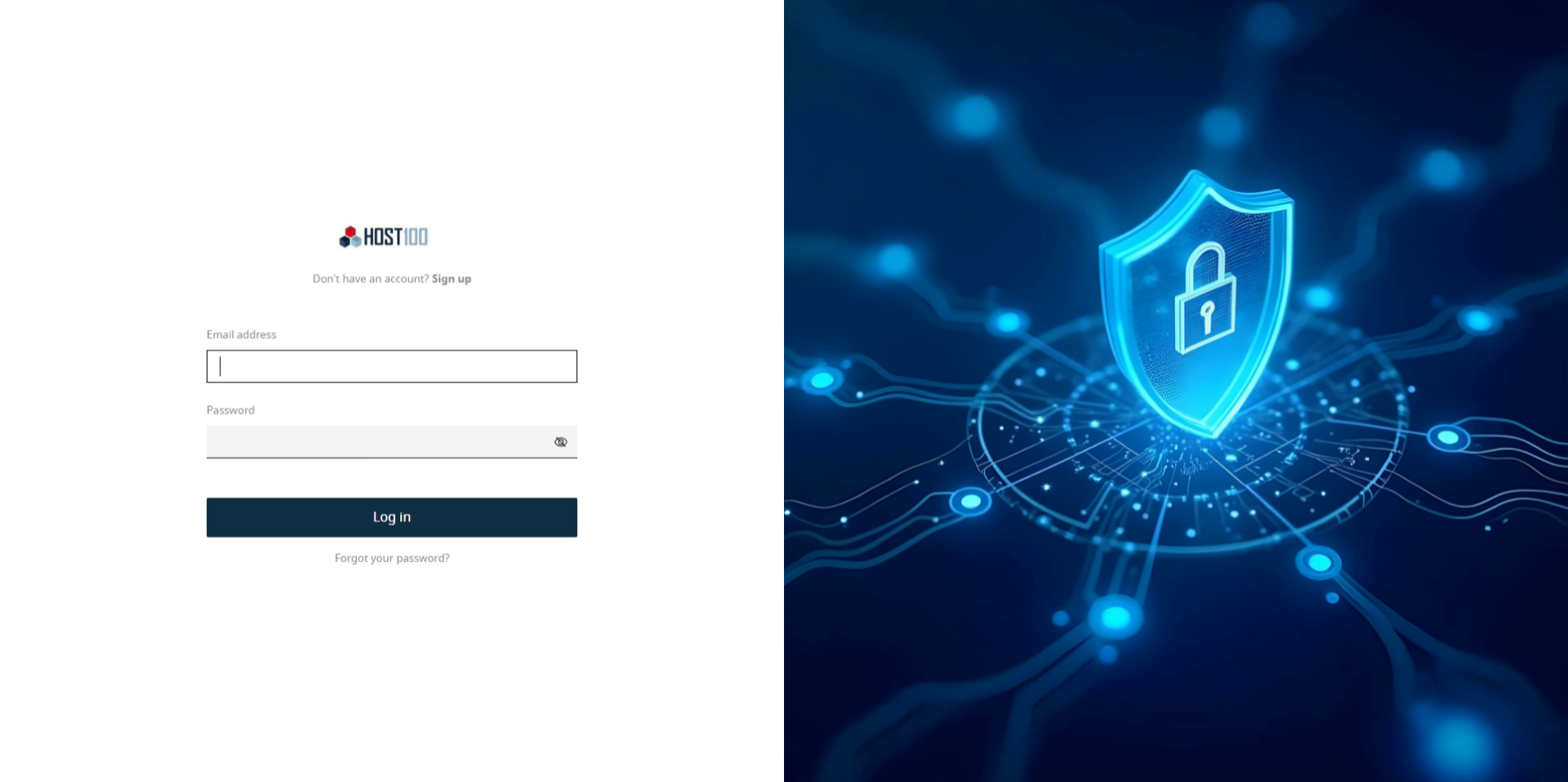
4. Click Password Field
Click the password field.
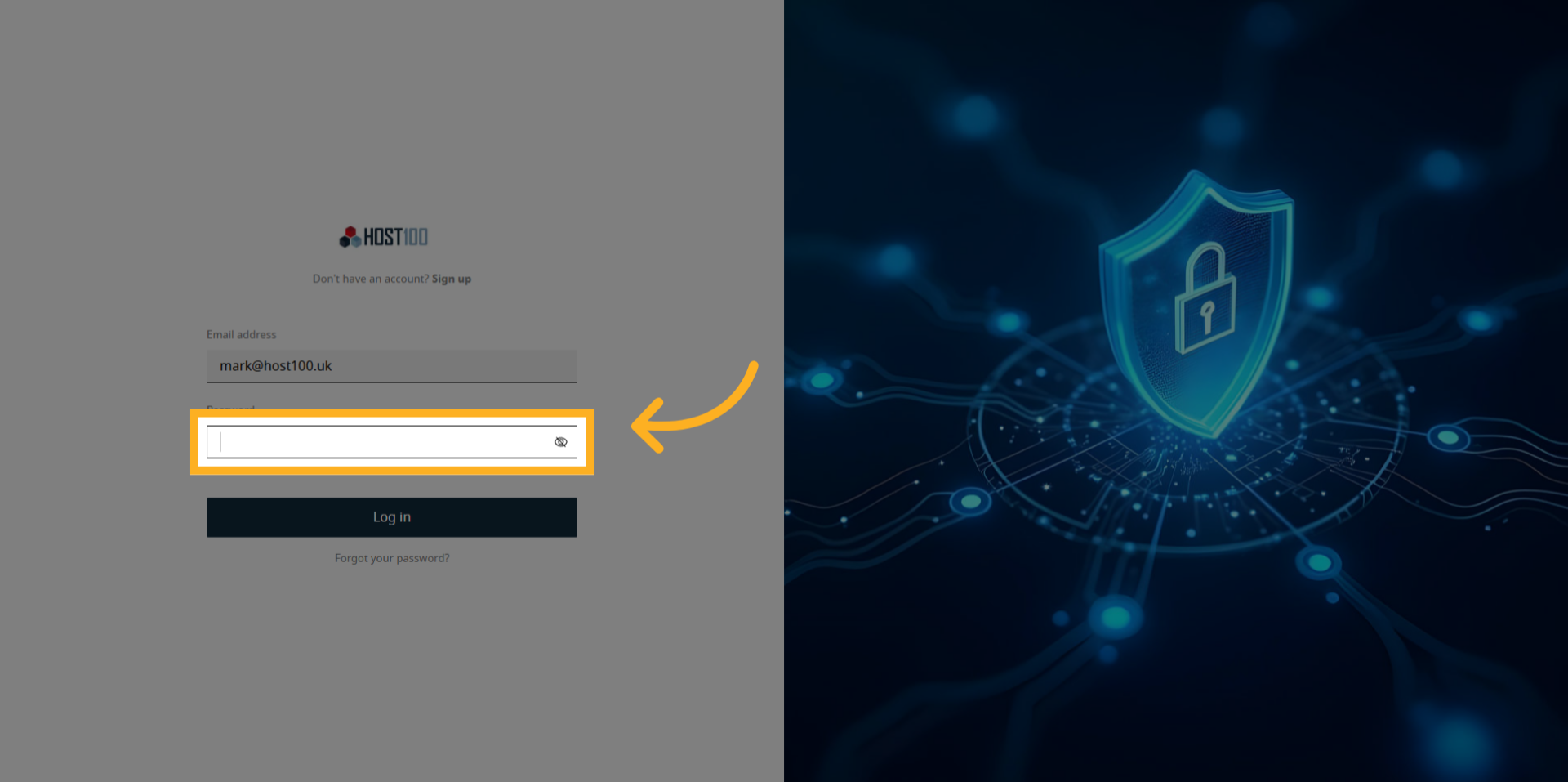
5. Enter Your Password
Enter the password which again, should have been sent to you in the Hosting Account Information email.
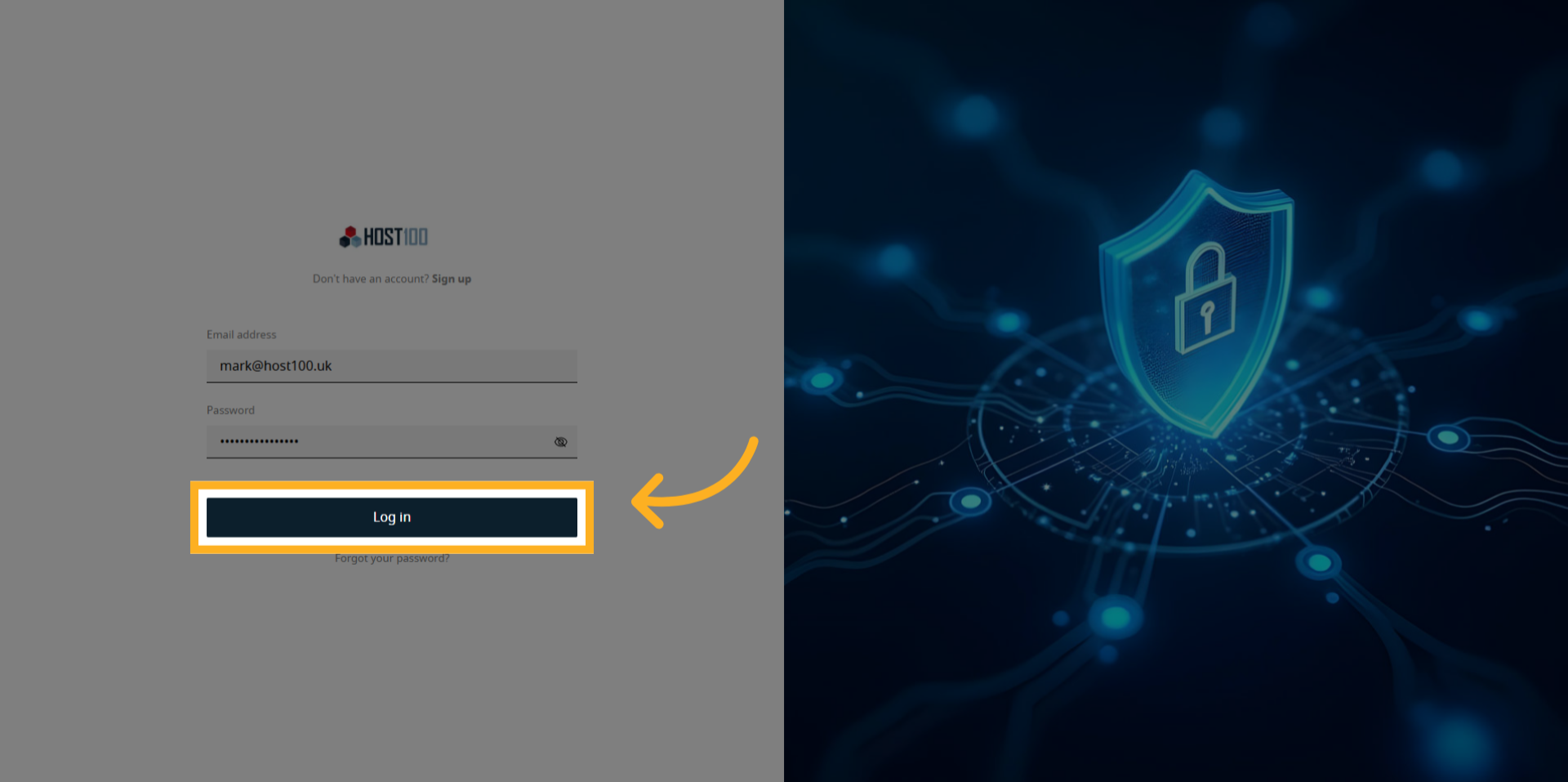
6. Click Log In Button
Click login.
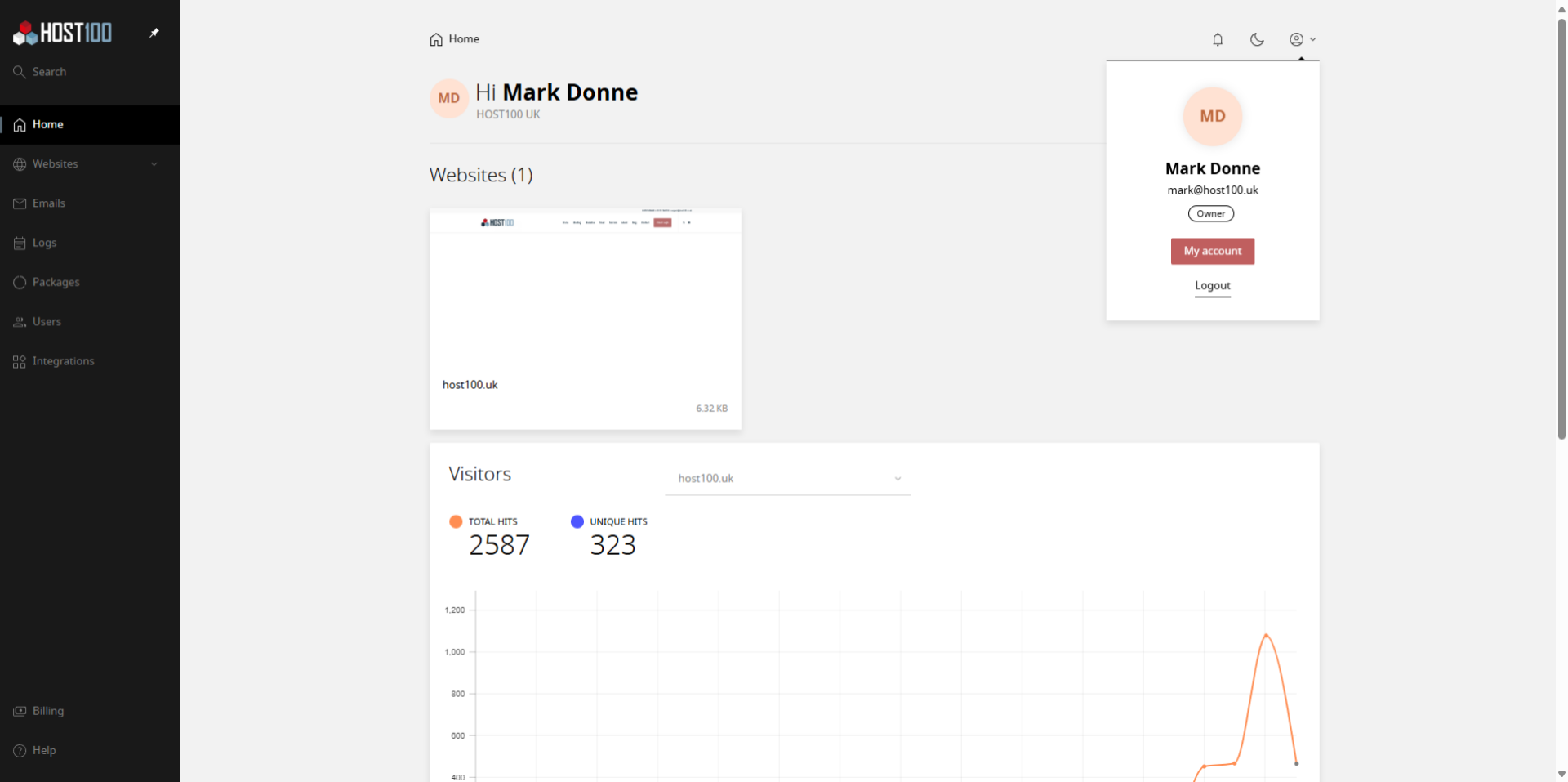
7. Login Complete by Direct Access
You are now logged into the control panel.
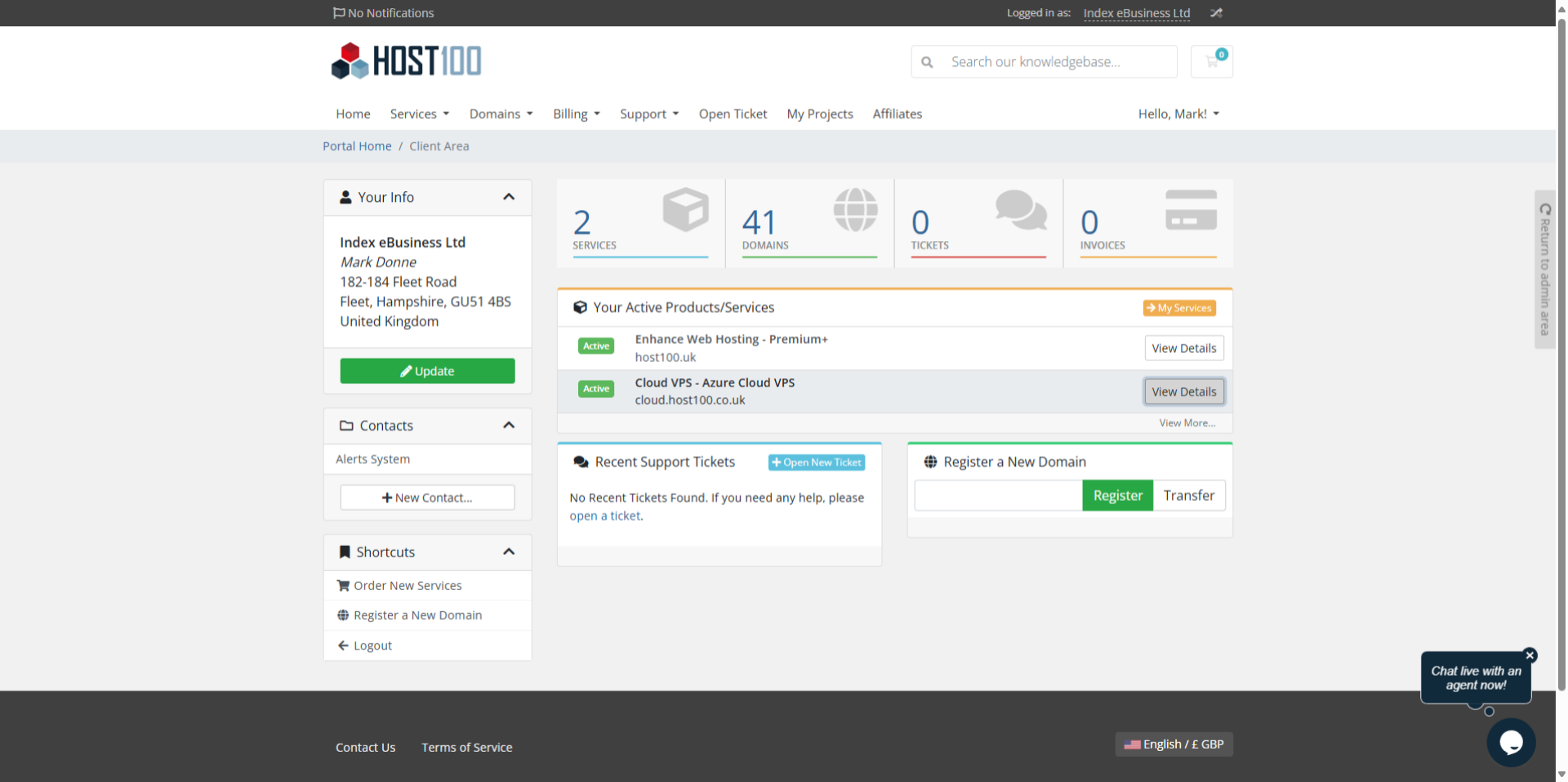
8. Client Portal Access
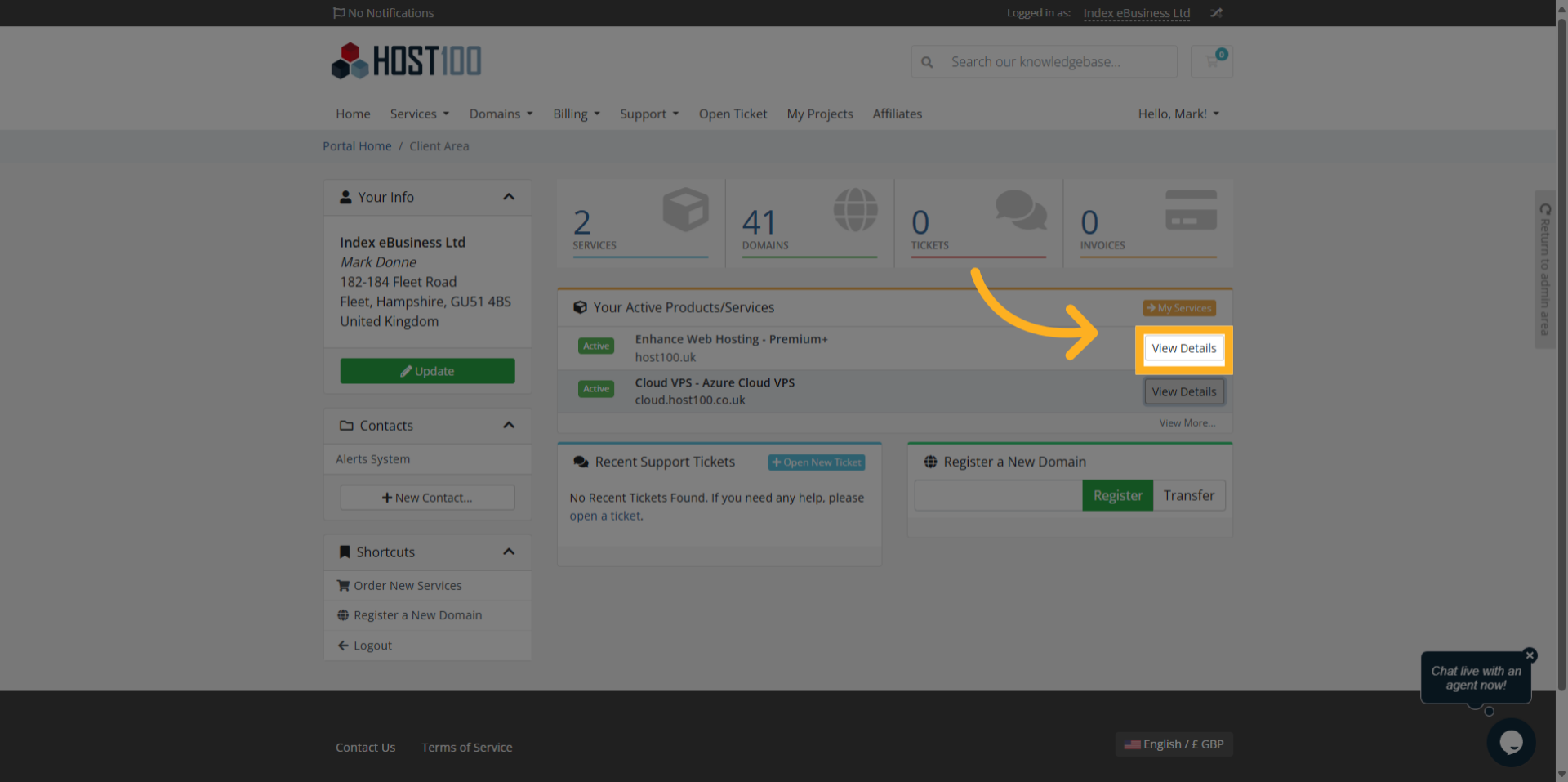
We will now show you another way to access the control panel, and that is via the Client Portal. Start by selecting the relevant Product from your Active Products and Services list.
9. Click View Details
Click view details.
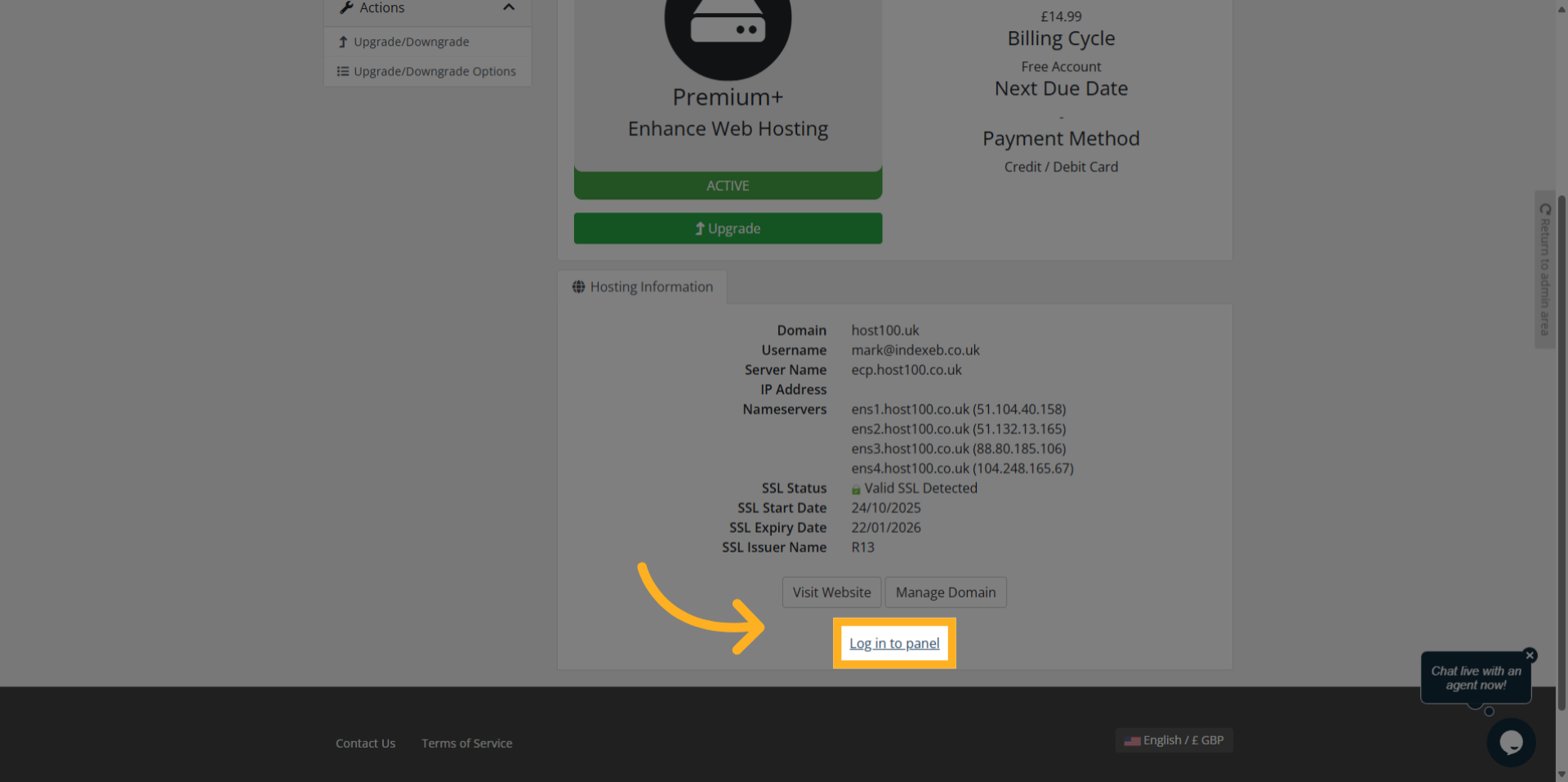
10. Click Log In To Panel
Scroll down and click on login to panel.
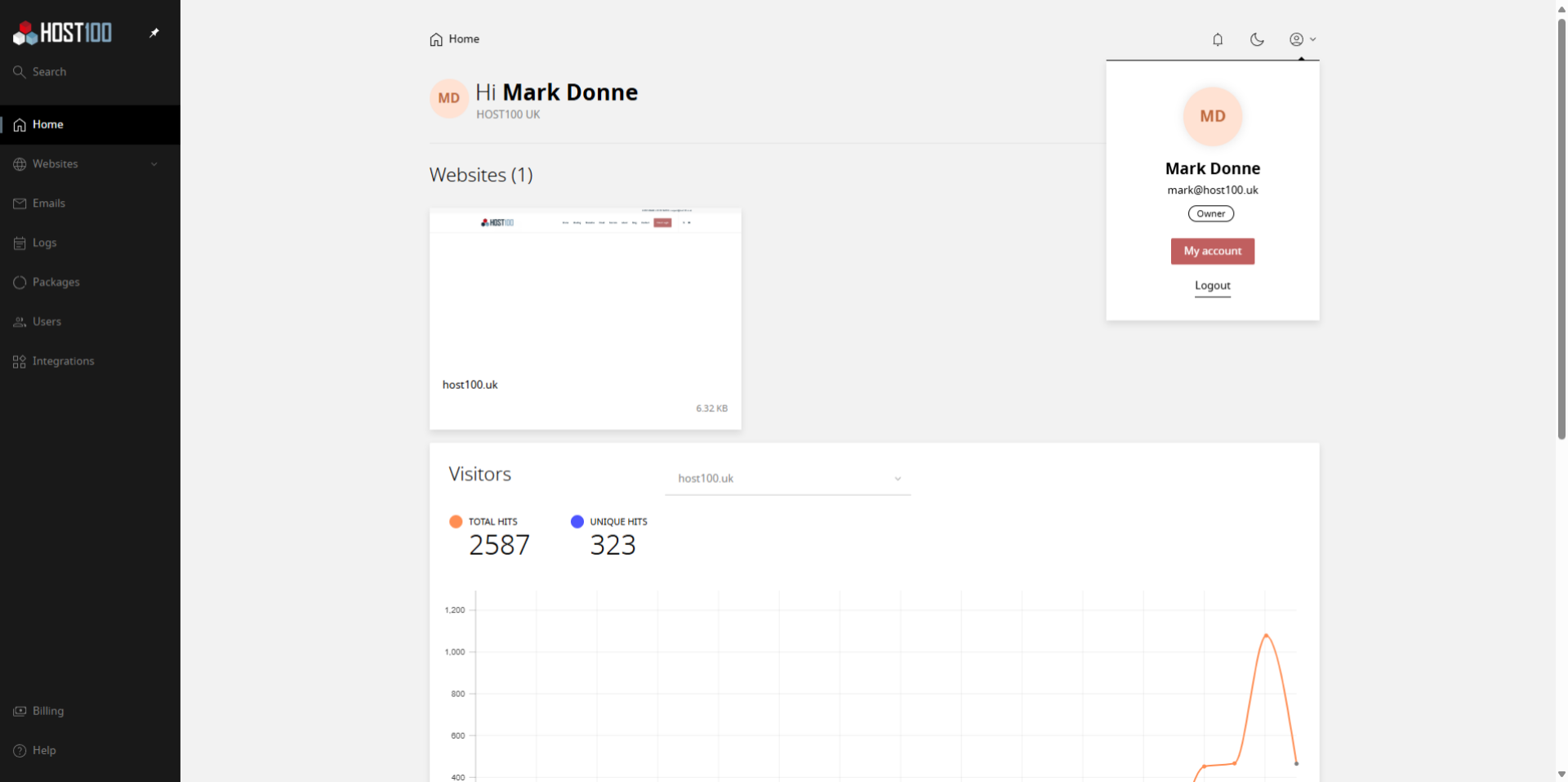
11. Login Complete from Client Portal
And that's it! You have now successfully logged into the control panel from the Client Portal.
This completes our guide, but should you need any help in accessing your control panel, then please raise a ticket by emailing
support@host100.co.uk, or call us on 01252 636060