This tutorial shows how to change the version of PHP with the HOST100 Control Panel.
1. Introduction
You will learn to navigate through the settings to update your PHP version effectively.
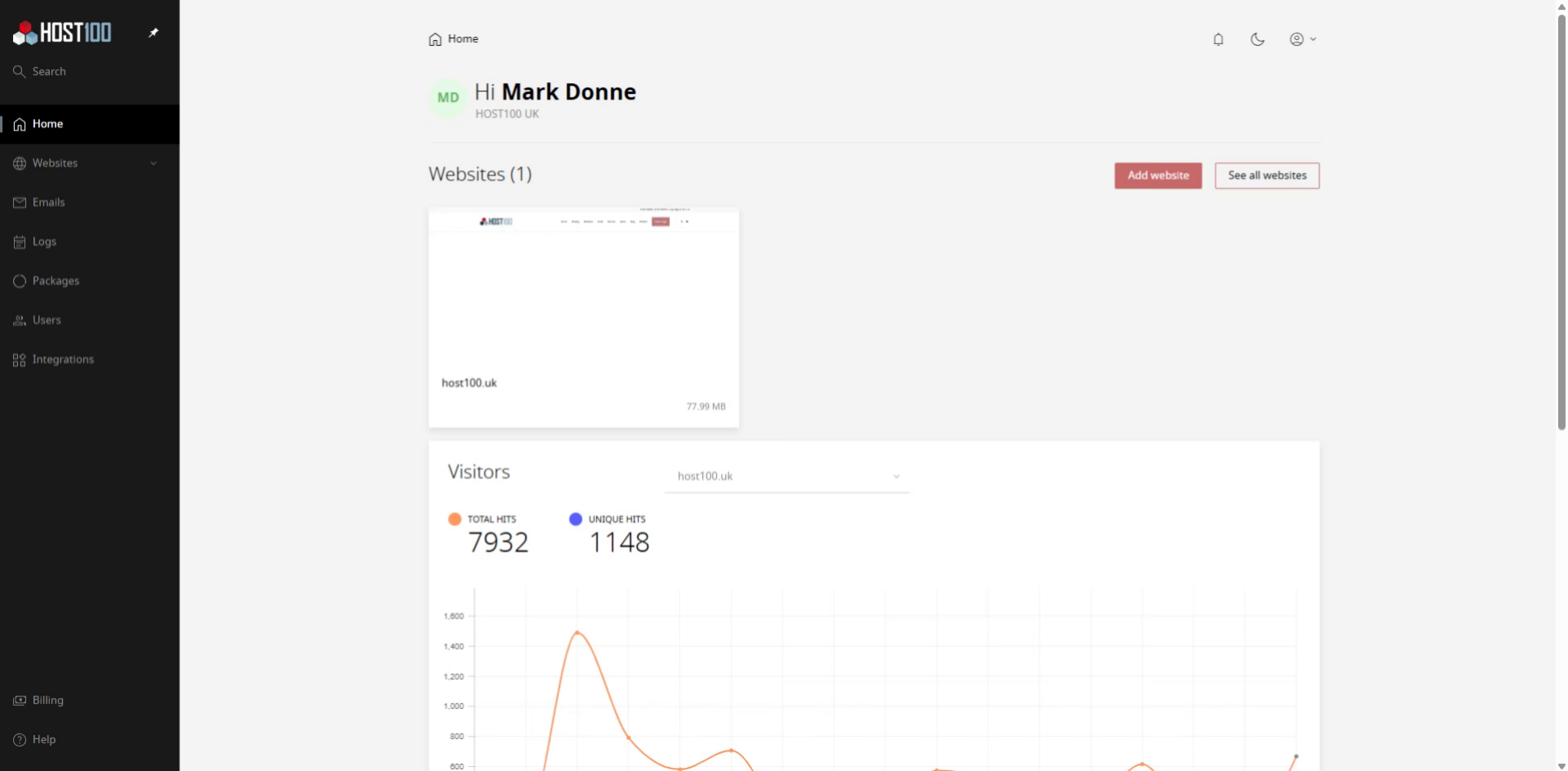
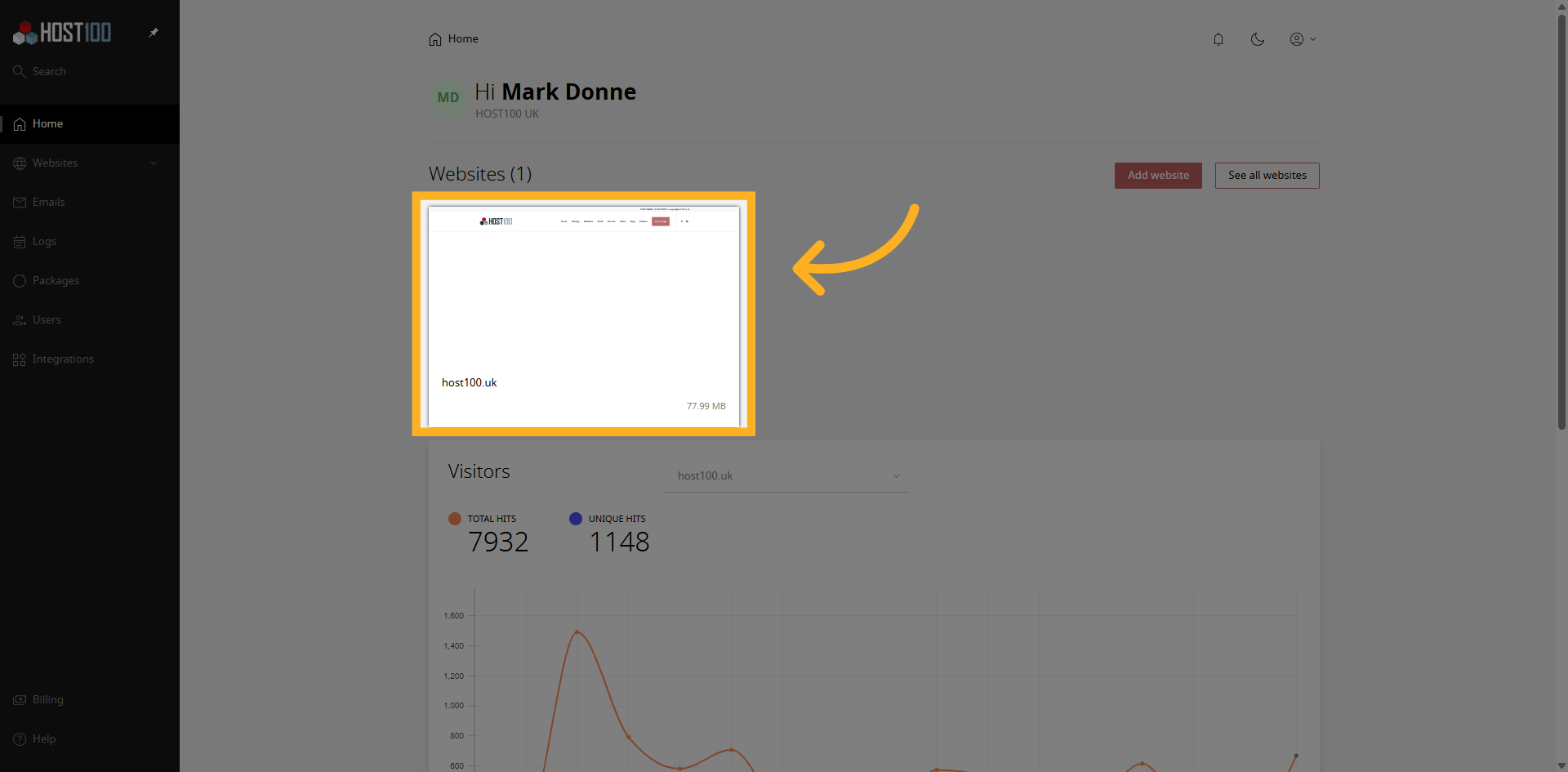
2. Open Website Dashboard
Click here to open the website dashboard where you can access various settings and options.
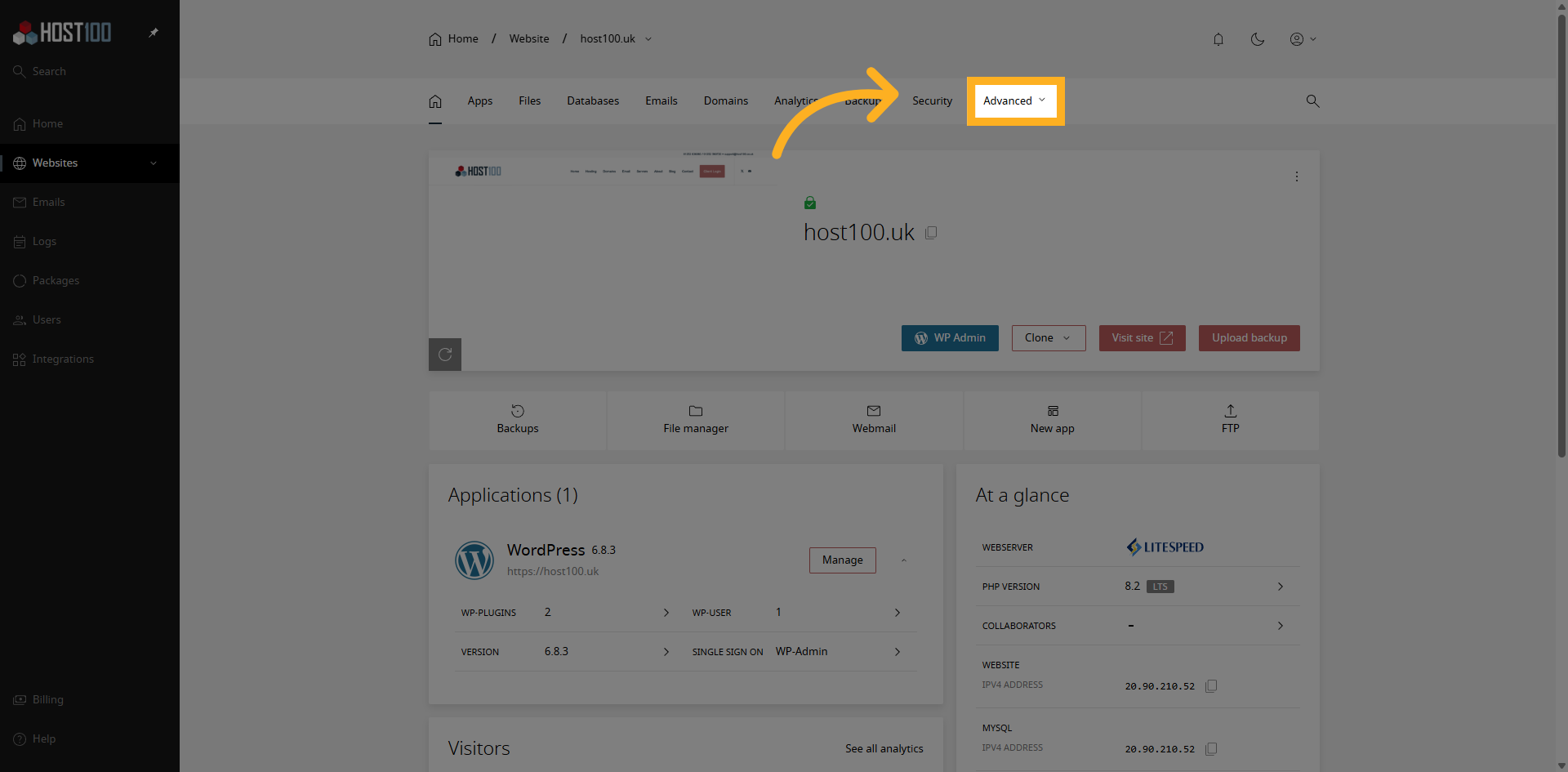
3. Access Advanced Settings
Click "Advanced" to open the advanced configuration options for your hosting.
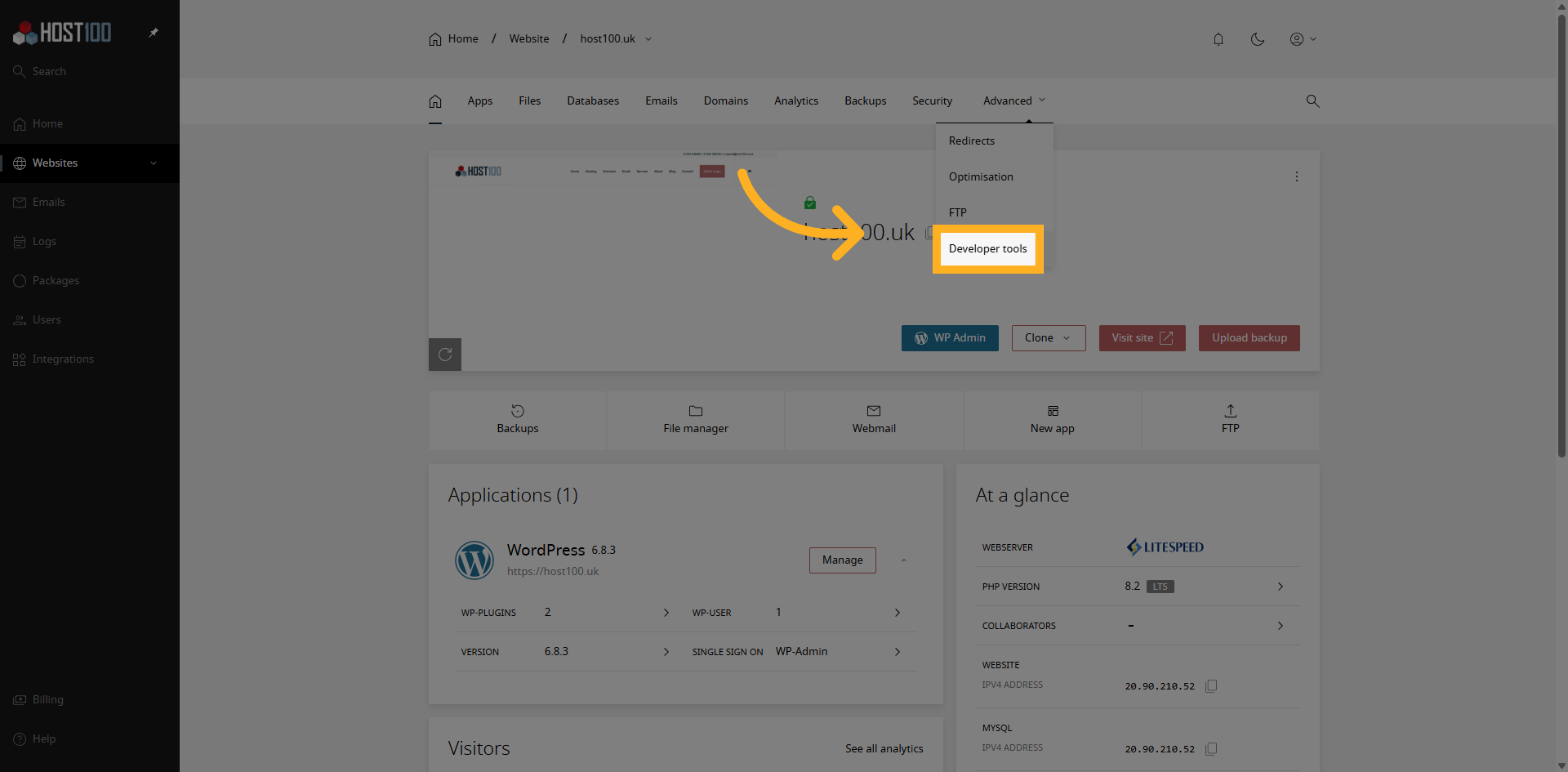
4. Open Developer Tools
Click "Developer tools" to access the section where you can manage development-related settings.
5. View PHP Versions
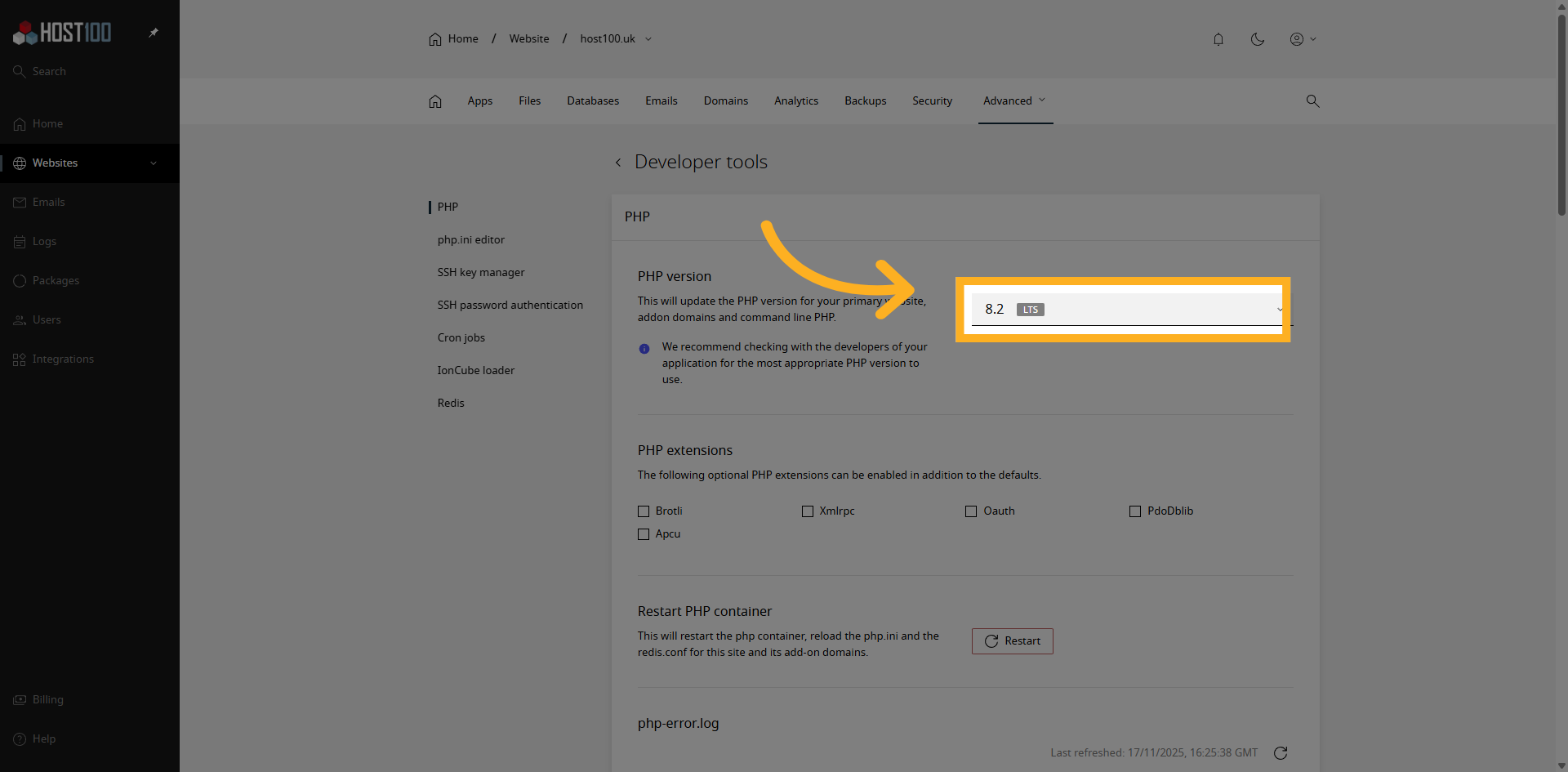
Click on the current PHP version to see a list of the available versions you can choose from.
6. Select Latest PHP Version
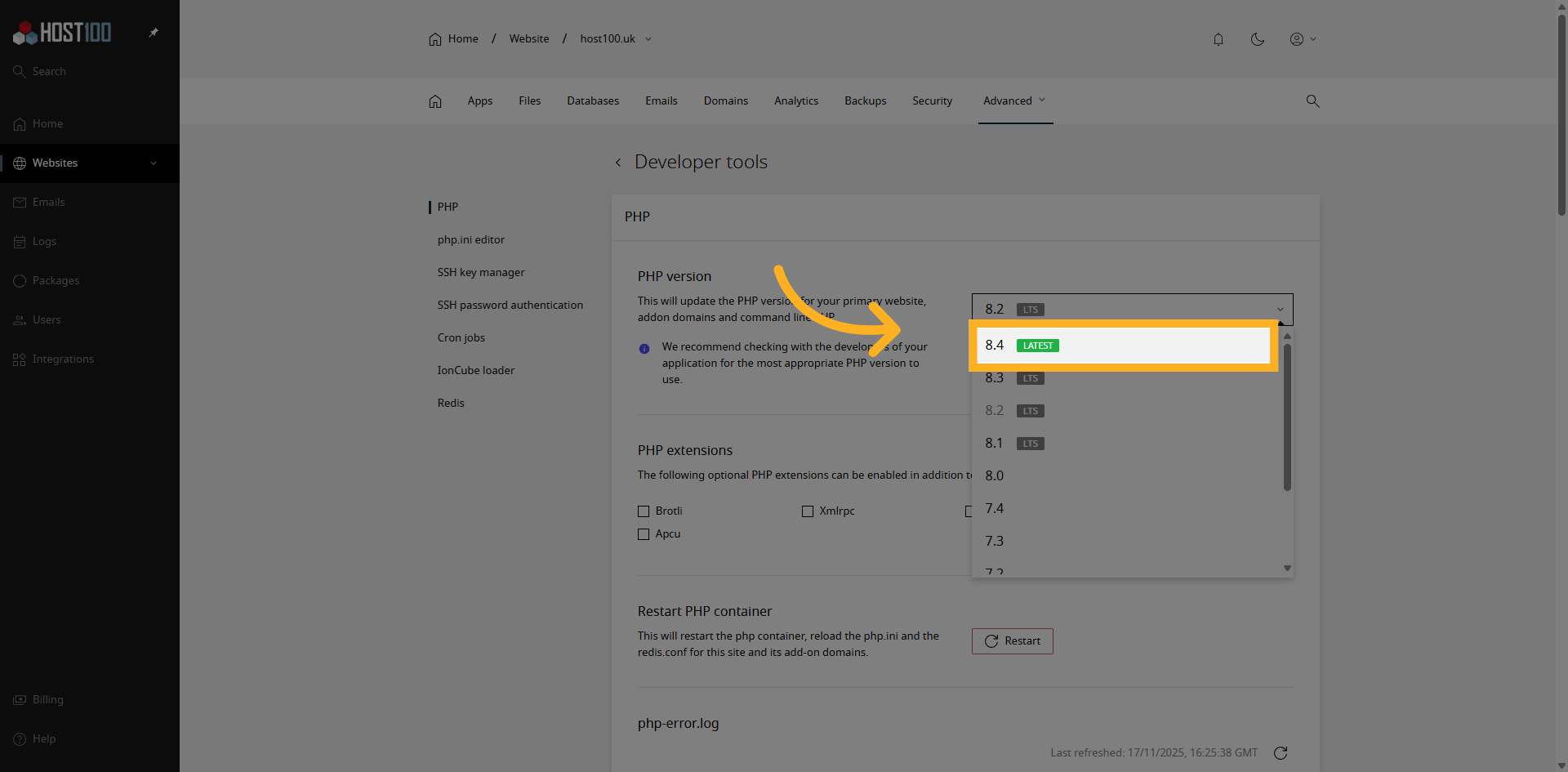
Click "Latest" to select the most recent PHP version available for your environment.
7. Apply PHP Version Update
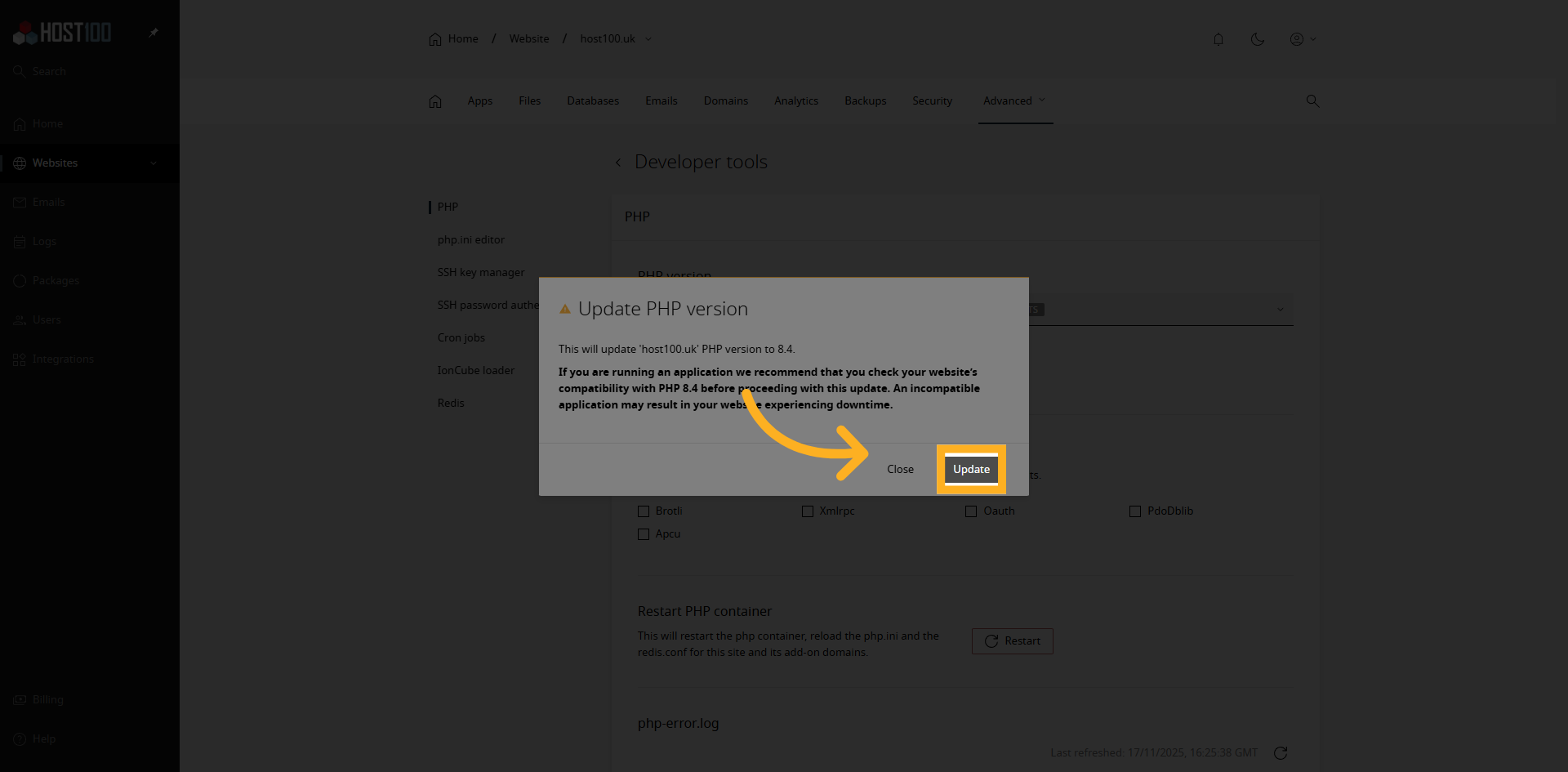
Click "Update" to save your changes and apply the new PHP version to your hosting account.
8. Change Confirmed
Your website is now running on your selected PHP version, you should check that your website loads and if not, switch back to the original version of PHP.
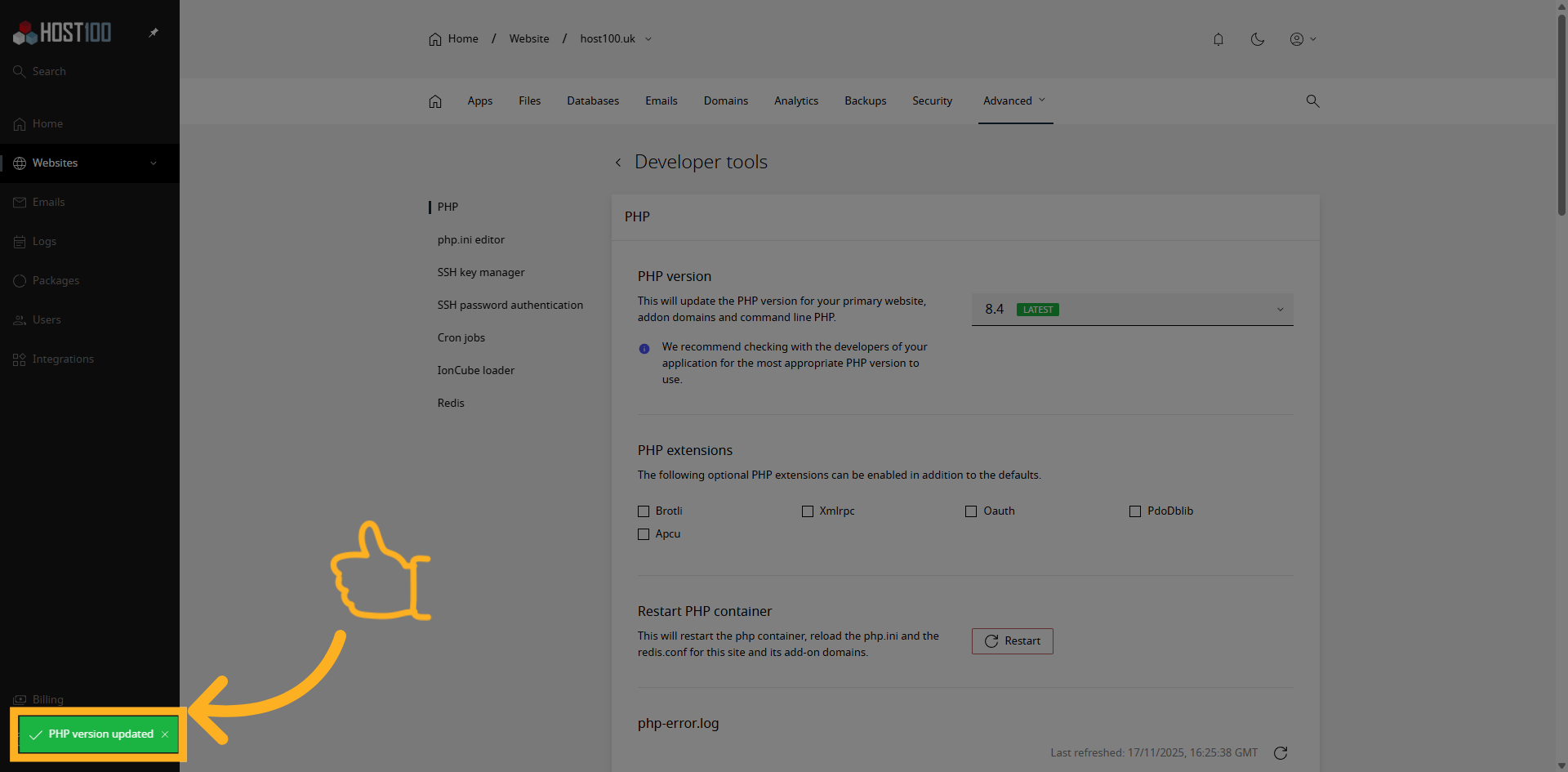
You have now successfully changed the PHP version in the HOST100 control panel.